Configure e-signature PIN
Before you can first provide an electronic signature, you need to configure your e-signature PIN. Each time you want to provide an e-signature you are asked to enter this PIN.
To configure the e-signature, navigate to your user's settings page
- To enter a new e-signature PIN you will be asked to re-authenticate yourself
- After re-authentification you can use the button and enter your e-signature PIN
- If you forget your e-signature PIN, you can enter a new one. Please do note that after a fresh e-siganture PIN is generated, the old one will stop working
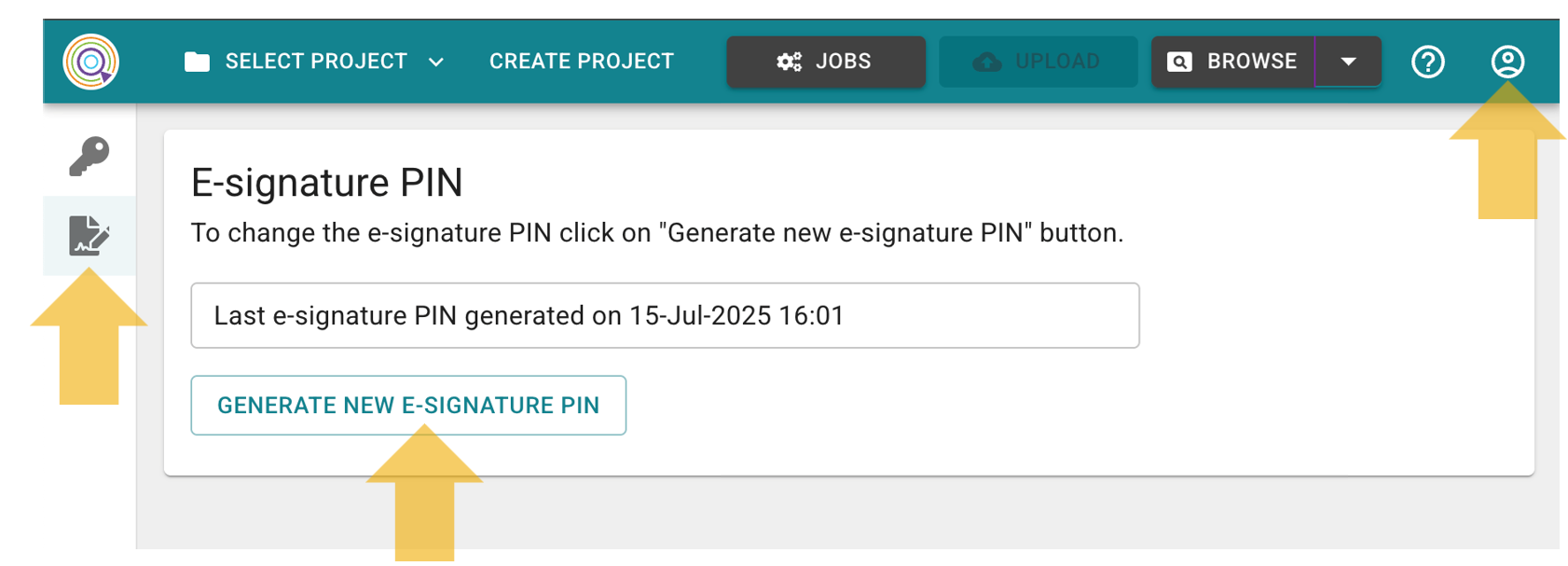
Image: User page to enter an e-signature PIN
E-signature usage
The e-siganture can be utilized to sign off defined steps in CP Portal. When an action requires the sign-off with an electronic signature, you are asked to enter your e-signature PIN before you can proceed:
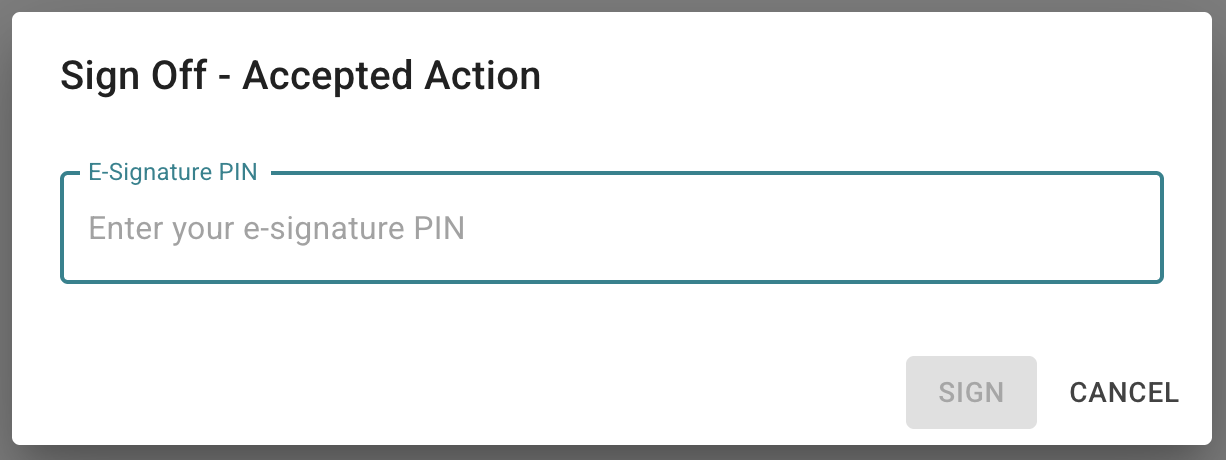
Image: System requests input of e-signature PIN